InputSystem 2
コントローラーの振動
振動自体は以下のようなコードで簡単に指定できます。
// 左モーターを50%の速さで回転
// 右モーターを停止させる
Gamepad.current?.SetMotorSpeeds(0.5f, 0.0f);
ゲームパッドを振動させる最低限のコード
ゲームパッドの左右モーターをそれぞれ1秒ずつ振動させるサンプルスクリプトです。
using System.Collections;
using UnityEngine;
using UnityEngine.InputSystem;

public class GamepadRumbleExample : MonoBehaviour
{
    private IEnumerator Start()
    {
        var gamepad = Gamepad.current;
        if (gamepad == null)
        {
            Debug.Log("ゲームパッド未接続");
            yield break;
        }

        Debug.Log("左モーター振動");
        gamepad.SetMotorSpeeds(1.0f, 0.0f);
        yield return new WaitForSeconds(1.0f);

        Debug.Log("右モーター振動");
        gamepad.SetMotorSpeeds(0.0f, 1.0f);
        yield return new WaitForSeconds(1.0f);

        Debug.Log("モーター停止");
        gamepad.SetMotorSpeeds(0.0f, 0.0f);
    }
}
上記スクリプトをGamepadRumbleExample.csという名前でUnityプロジェクトに保存し、適当なゲームオブジェクトにアタッチすると、スクリプトが機能するようになります。
ゲームパッドを振動させるためには、予めゲームパッドを接続した状態にしてください。
接続された状態でゲームを実行すると、左右のモーターがそれぞれ1秒間だけ振動して停止します。
スクリプトについて
以下のコードでゲームパッドの左右モーターを振動させています。
gamepad.SetMotorSpeeds(1.0f, 0.0f);
第1引数に左モーター(低周波)の回転数
第2引数に右モーター(高周波)の回転数
これを0~1の範囲で指定します。
0を指定するとモーターの回転が停止、1を指定すると最大出力でモーターが回転します。
SetMotorSpeeds()メソッドでコントローラのモーターを動かすと、止まらずにずっと振動し続けます。ゲームを停止しても動き続けますので、必ず回転数0を指定して振動を止める処理を入れてください。
コントローラの振動を一括で停止・再開する
以下メソッドを実行すると、Input Systemで管理しているコントローラの振動を一括で停止・再開できます。
// 振動を一時停止
InputSystem.PauseHaptics();

// 振動を再開
InputSystem.ResumeHaptics();

// 振動を停止し、パラメータリセット
InputSystem.ResetHaptics();
-
InputSystem.PauseHaptics()メソッド
コントローラの振動を一時停止するメソッドです。回転数などの設定値は保持されます。 -
InputSystem.ResumeHaptics()メソッド
コントローラの振動を再開するメソッドです。保持された設定値で振動が再開されます。 -
InputSystem.ResetHaptics()メソッド
コントローラの振動を停止し、設定値を初期値にリセットします。
サンプルスクリプト
上記メソッドの挙動を確かめるためのサンプルスクリプトです。
using System.Collections;
using UnityEngine;
using UnityEngine.InputSystem;

public class PauseResumeExample : MonoBehaviour
{
    private IEnumerator Start()
    {
        var gamepad = Gamepad.current;
        if (gamepad == null)
        {
            Debug.Log("ゲームパッド未接続");
            yield break;
        }

        var wait = new WaitForSeconds(1.0f);

        Debug.Log("左モーター振動");
        gamepad.SetMotorSpeeds(1.0f, 0.0f);
        yield return wait;

        Debug.Log("振動を一時停止");
        InputSystem.PauseHaptics();
        yield return wait;

        Debug.Log("振動を再開");
        InputSystem.ResumeHaptics();
        yield return wait;

        Debug.Log("振動を停止し、パラメータリセット");
        InputSystem.ResetHaptics();
        yield return wait;

        Debug.Log("振動を再開(初期値なので振動しない)");
        InputSystem.ResumeHaptics();
        yield return wait;

        Debug.Log("振動を停止");
        InputSystem.ResetHaptics();
    }
}
ゲームパッドが接続された状態で起動すると、ゲームパッドの左モーターが2回だけ振動します。
InputSystem.PauseHaptics()→InputSystem.ResumeHaptics()
の順に呼び出したタイミングでは振動が再開され、
InputSystem.ResetHaptics()→InputSystem.ResumeHaptics()の順に呼び出した際は振動しません。
これは、InputSystem.ResetHaptics()呼び出しの時点で回転数が初期値(=0)に戻っているためです。
Player Input経由で抽象化されたコントローラを振動させる
Gamepadクラスにアクセスするのではなく、 Player Inputから振動可能なコントローラを取得し、振動させるサンプルです。
PlayerInputRumbleExample.cs
using System.Collections;
using System.Linq;
using UnityEngine;
using UnityEngine.InputSystem;
using UnityEngine.InputSystem.Haptics;

[RequireComponent(typeof(PlayerInput))]
public class PlayerInputRumbleExample : MonoBehaviour
{
    private IEnumerator Start()
    {
        // PlayerInputインスタンスを取得
        var playerInput = GetComponent<PlayerInput>();

        // PlayerInputから振動可能なデバイス取得
        // playerInput.devicesは現在選択されているスキームのデバイス一覧であることに注意
        if (playerInput.devices.FirstOrDefault(x => x is IDualMotorRumble) is not IDualMotorRumble gamepad)
        {
            Debug.Log("デバイス未接続");
            yield break;
        }

        // 振動
        Debug.Log("コントローラ振動開始");

        gamepad.SetMotorSpeeds(1.0f, 0.0f);
        yield return new WaitForSeconds(1.0f);

        gamepad.SetMotorSpeeds(0.0f, 1.0f);
        yield return new WaitForSeconds(1.0f);

        gamepad.SetMotorSpeeds(0.0f, 0.0f);

        Debug.Log("コントローラ振動停止");
    }
}
PlayerInputRumbleExample.csという名前で保存し、PlayerInputコンポーネントがアタッチされているゲームオブジェクトにアタッチすると機能するようになります。
スキームを設定した場合、サンプルスクリプトではゲーム起動時に、選択中スキームのデバイスを取得するため、Player InputのDefault SchemeをGamepadにしておく必要があります。(InputActionAsset側でもSchemeを正しくセットしておく必要があります)
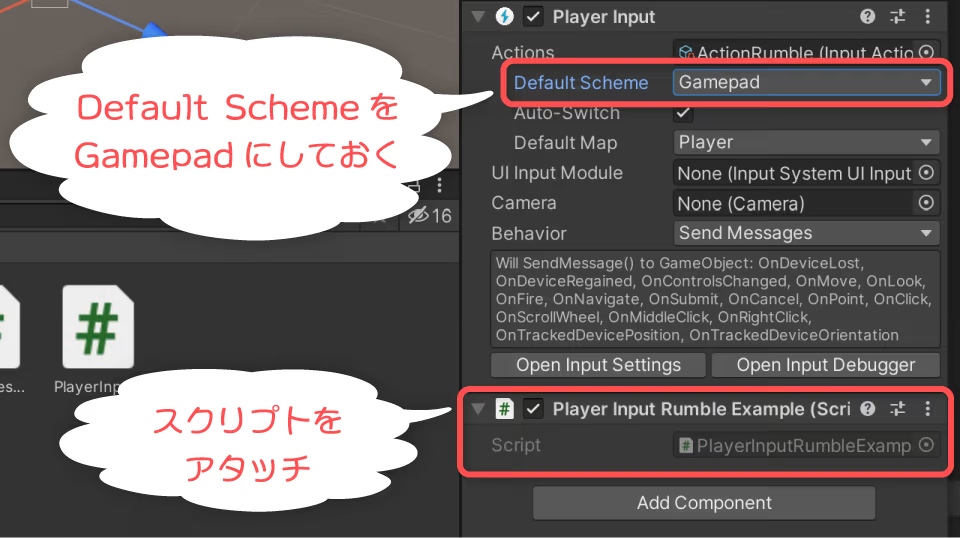
ゲームパッドを接続した状態でゲームを実行すると、左右モーターを振動させることができます
スクリプトについて
次の部分で振動可能なデバイスを取得しています。
if (playerInput.devices.FirstOrDefault(x => x is IDualMotorRumble) is not IDualMotorRumble gamepad)
SetMotorSpeeds()メソッドは、IDualMotorRumbleインタフェースのメソッドを実装したもの。デバイスをIDualMotorRumbleにキャストしています。
キャストできるデバイスがあれば、振動させる処理に移行します。
gamepad.SetMotorSpeeds(1.0f, 0.0f);
yield return new WaitForSeconds(1.0f);

gamepad.SetMotorSpeeds(0.0f, 1.0f);
yield return new WaitForSeconds(1.0f);

gamepad.SetMotorSpeeds(0.0f, 0.0f);